if you have a lot of columns in your app, when the user first runs it, the forms could have many unnecessary columns on the list view that causes your eyes to gloss over...
instead of the user having to hide the un-needed columns, use this function to set the listview columns to the specific default columns you want on startup.. create a function where the user can click a button to "Set default columns".
Note:
you want this to run only once at onboarding or initial setup, as you don't want it to overwrite any user changes, or have a button on your dashboard or a link on your menu somewhere.
this is the bare function, you may want to add an "are you sure.." prompt.
function  setDisplayColumnDefaults() {

localStorage.setItem('APPNAME_FORMNAME_invisible_fields', 'FIELD_to_hide, FIELD_to_hide, FIELD_to_hide');

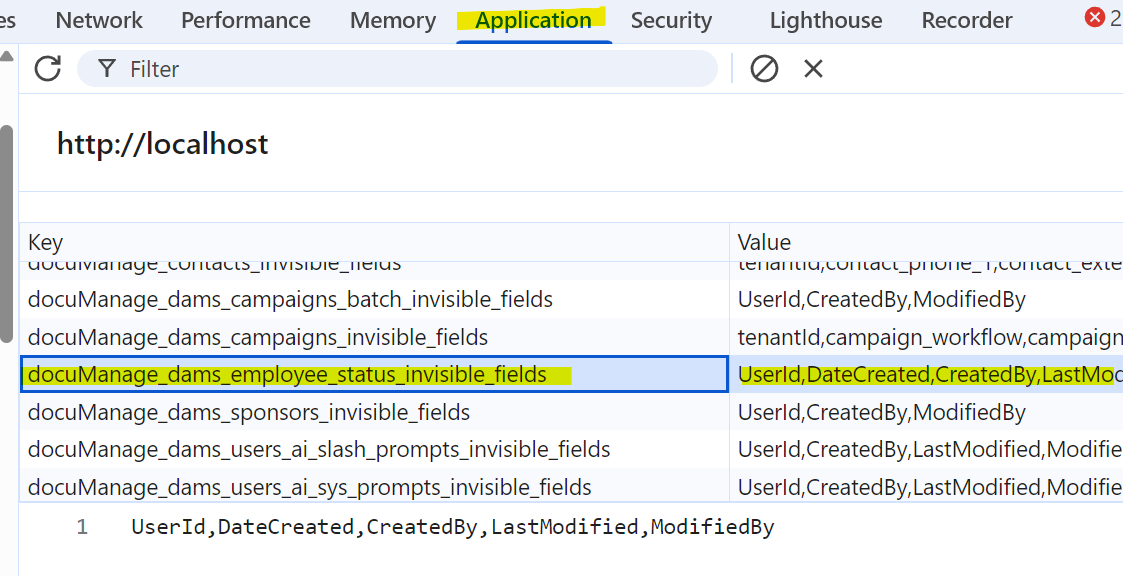
localStorage.setItem('contactApp_contacts_invisible_fields', 'contact_phone_1,contact_extension,contact_addr_1,contact_addr_2,contact_addr_country,contact_addr_prov,contact_addr_city,contact_addr_postal,UserId,DateCreated,CreatedBy,LastModified,ModifiedBy');
}
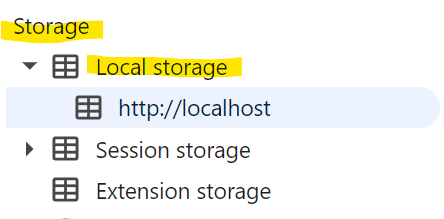
the columns that are hidden are stored in the localStorage area of the browser
open up the debugger pane and look for you entries, setup your app columns with the colums to display/hide, then simple copy and paste the entries in the syntax as shown above.
Note: make sure you remove any training spaces in the key:
Correct:
'APPNAME_FORMNAME_invisible_fields'
Won't Work:
'APPNAME_FORMNAME_invisible_fields '